 ServiceKeel
CONNECTION GUIDE
Connect your Twilio account
to ServiceKeel.
Use your own business number for customer texts. Keep your Twilio account, billing, and phone numbers under your control.
Open integrationsBEFORE YOU START
Have your account and number ready.
- A saved ServiceKeel workspace where you are an owner or admin.
- Access to the Twilio account that owns your SMS-capable business number.
- Your Account SID, an API key and its secret, and your account’s Auth Token for incoming-message verification.
- Any sender registration or verification Twilio requires for your number and destination countries.
Use the credentials for the account or subaccount that owns the number. This setup uses Twilio’s standard US1 API endpoint. Twilio test credentials do not connect a real number or deliver live messages.
Trial accounts have additional messaging restrictions. Check Twilio’s current trial rules before planning a live test.
01 / OPEN THE CONNECTION
Find Twilio in your workspace.
Choose Integrations in the left menu. Under Business phone & texting, find the Twilio tile and select Connect Twilio. If it is already connected, choose Manage Twilio.
Guest accounts must be saved before a phone service can be connected. If the connect button is unavailable, ask your workspace owner or admin to complete setup.
02 / ADD YOUR CREDENTIALS
Connect the account you own.
In the Twilio Console, choose the account that owns your business number. Copy its Account SID and create a dedicated API key for ServiceKeel. The key needs permission to list that account’s incoming phone numbers and send messages.
Follow Twilio’s API key guide to choose the appropriate key and permissions. A key’s secret and the account’s Auth Token serve different purposes.
| ServiceKeel field | Using an API key | Using the account Auth Token |
|---|---|---|
| Account SID | Your account’s AC… SID | Your account’s AC… SID |
| API key SID or Account SID | Your key’s SK… SID | The same AC… SID |
| API secret or Auth Token | The matching API key secret | Your account’s Auth Token |
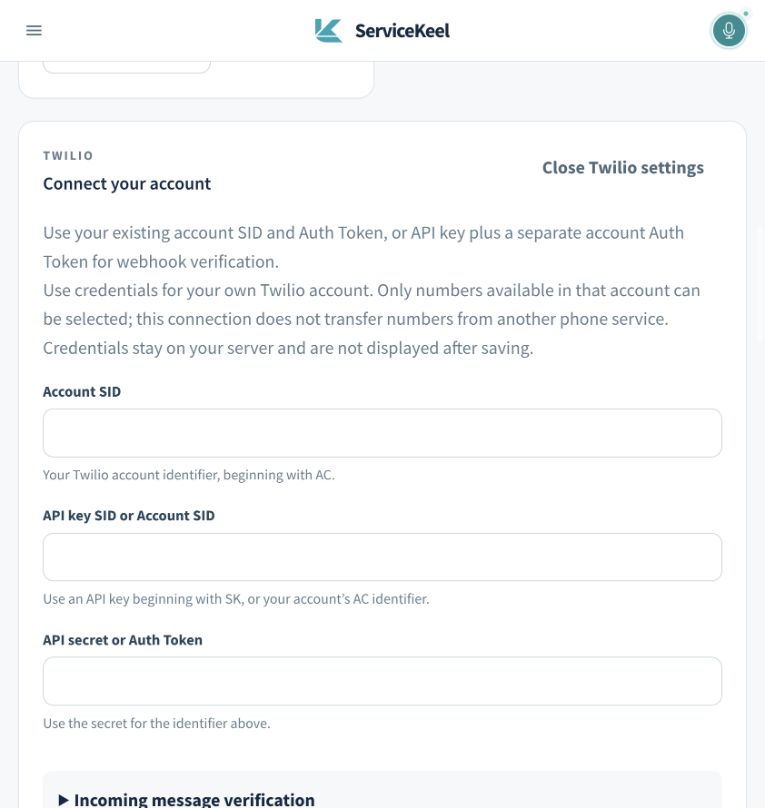
Credentials are sent to the ServiceKeel backend and are not shown again after saving. Enter them only in the connection form; do not put secrets in a support email or screenshot.
03 / VERIFY INCOMING MESSAGES
Add the account’s Auth Token.
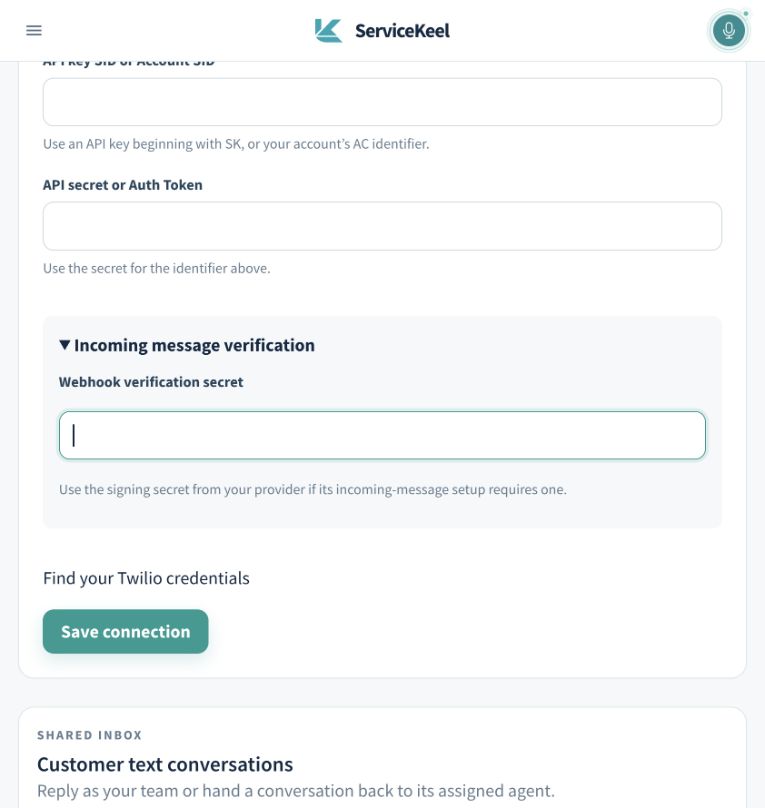
If you used an API key, expand Incoming message verification and put your Twilio account’s Auth Token in Webhook verification secret. Twilio uses this token to sign webhook requests; the API key secret cannot verify those signatures.
If you used your Account SID and Auth Token for the connection, ServiceKeel also uses that Auth Token for verification when this field is left empty. Select Save connection to verify the credentials and load your numbers.
04 / CHOOSE A NUMBER & ROUTE INCOMING TEXTS
Connect both sides of the conversation.
- In Manage Twilio, select an SMS-enabled Business phone number. Use Reload numbers if you have just added a number in Twilio.
- Confirm that incoming verification is configured. You can add or replace the token in Twilio Auth Token for incoming messages. Leave Allow assigned AI agents to reply off for your first manual test, then choose Save phone settings.
- Expand Receive incoming messages and choose Copy address. Use this connection’s exact Incoming message address.
- In the Twilio Console, open Phone Numbers → Manage → Active numbers, select the same number, and open its messaging configuration.
- For A message comes in, choose Webhook, paste the copied address, set the method to HTTP POST, and save.
The webhook address must be publicly reachable over HTTPS. Copy it from your connection; it is different from an OAuth callback or the integrations page address. Saving credentials in ServiceKeel does not automatically register this webhook in Twilio.
See Twilio’s webhook configuration instructions if the Console layout differs.
05 / TEST, THEN ENABLE YOUR AGENT
Check a real conversation.
- From a phone you control, text your connected Twilio number.
- Open Customer text conversations on the integrations page, choose your Twilio connection, and select Refresh messages. Confirm the incoming text appears.
- Reply with a short test message, confirm you have permission to text that number, and choose Send text message. Confirm receipt on the test phone. Twilio’s normal usage charges and trial restrictions apply.
- When both directions work, choose Set up an SMS agent. Assign an active SMS agent to this phone connection and configure its instructions.
- Return to Manage Twilio, enable Allow assigned AI agents to reply, and save. Send another inbound test text to confirm the agent replies as intended.
A team member’s manual reply pauses the agent for that conversation. Use the conversation’s hand-back control when you want its assigned agent to take over again. Turning off automated replies leaves manual messaging available.
IF SOMETHING DOESN’T CONNECT
Check the part that needs attention.
- The credentials are rejected.
- Check that the Account SID owns the number, the API secret matches its SK key, and the key has the required permissions. For account authentication, use the same AC identifier in both SID fields and its matching Auth Token.
- No eligible numbers appear.
- Confirm that the number belongs to this account or subaccount and supports SMS. Reload the number list. Test credentials cannot discover your real numbers.
- Sending works, but incoming texts are missing.
- Check the exact webhook address, HTTP POST method, Twilio Auth Token, selected number, and any Messaging Service inbound settings. Review Twilio’s messaging logs for webhook errors. A saved connection alone does not confirm incoming delivery.
- Twilio rejects the message.
- Check the provider error, trial recipient/content limits, account balance, sender registration, and destination permissions in Twilio. Do not repeatedly retry a rejected message without resolving its cause.
- The AI agent does not reply.
- Verify an active SMS agent is assigned to this connection, automated replies are enabled, and the conversation has been handed back to the agent. Confirm manual incoming messages work first.
MANAGE YOUR CONNECTION
Update or disconnect whenever you need.
Open Manage Twilio → Update credentials to replace an API key. If the account Auth Token changes, also replace Twilio Auth Token for incoming messages and save your phone settings.
Choose Disconnect Twilio and confirm to stop sending and automated replies from this ServiceKeel connection. Remove or replace the webhook in Twilio, and revoke the dedicated API key if you no longer need it. Disconnecting ServiceKeel does not cancel your Twilio account or release its numbers.
Need a hand?
Share the step, the visible error, and the time of your test with our support team. Keep tokens and customer message content out of the request.
Contact ServiceKeel